Tag: seo

  • How to do keyword research for SEO in 4 simple steps

    How to do keyword research for SEO in 4 simple steps

    How to do keyword research for SEO in 4 simple steps

    Optimizing a blog post or a website can feel like standing outside a locked door with no key. Reading ultimate guides from self-proclaimed gurus can make you even more confused. But, don’t worry.

    Your key to dominating the search engine rankings starts with one thing: keyword research. Sounds confusing? It’s not. I’ll give you a step-by-step process for finding the right keywords so your blog starts to climb the Google rankings, unlocking organic traffic you never thought you could get.

    What is keyword research?

    Keyword research is the process of analyzing search engine data such as monthly search volume, difficulty, and user intent to find the right keywords to target for your website or blog. By targeting the right keywords, your website will rank higher in search engine results giving you better visibility and more organic traffic. 

    Why should I do keyword research?

    Using helpful keyword tools, you can discover keyword ideas that you may not have thought about on your own. Different people search in different ways. Doing research is a great way to know how other people search and what keywords are most popular for your specific topic.

    You could write the best article in the world, but without keyword research as part of your SEO strategy you will end up in front of the wrong audience, or worse, no audience at all.

    Keyword research tools

    There are loads of tools out there that can do all sorts of things. When it comes to keyword research tools, you want something that can:

    • Analyze page content
    • Give you data like monthly search volume and keyword difficulty.
    • Export long tail keywords and “people also ask” data
    • Bonus if the tool tells you the intent behind the search, but we can figure that out ourselves.

    I like to use:

    Keywords Everywhere

    This is a Google Chrome extension and Firefox plugin that is massively helpful. Turn it on, run a Google search, and the little widgets appear right inside the search results displaying monthly search volume, difficulty, long-tail keywords, and “people also ask” data. You can export this data into a spreadsheet.

    SEO Minion

    Also a Google Chrome extension, SEO Minion will give you word count and meta data like titles, descriptions, and search engine results page (SERP) analysis. It can also check all your links to find broken ones, which is not for keyword research but helpful for other things.

    Google Keyword Planner

    Of course they wouldn’t make you keep up with Google trends on your own. Instead, they gave you a great, free tool. Use Google keyword planner to help you generate keyword ideas after you’ve exhausted all your own.

    Check out some other favorite SEO tools here!

    Understanding user intent 

    If keywords are the words people type in to find answers, user intent defines why they want the answer and what type of content they want Google to give them.

    For example, if a user Googles “keyword research” are they looking for a step by step guide? Are they looking to purchase a keyword research tool? Are they simply looking for a definition?  It’s important to know how your potential customers search.

    Here are the 4 types of user intent:

    Navigational search intent

    Navigational search intent is when someone knows where they want to go and needs help getting there. Google search example: “LinkedIn” or “Facebook login”.

    The user wants to go to LinkedIn or login to Facebook, they just need the URL. Branding optimized content shows up here. The user already knows who you are.

    Informational search intent

    Informational search intent is when the user wants to learn about a topic. Google search example: “what is keyword research” or “how to do keyword research”.

    The user doesn’t know what it is or how to to do it. They’re looking for expertise that they can learn from. This type of content creates awareness, and builds trust and authority.

    Commercial search intent

    Commercial search intent is when the user is looking for advice from an experienced person or doing research before a purchase. Google search example: “best charcoal gills” or “gas vs charcoal grill”.

    The user wants to see what other people recommend. They may be weighing the differences in buying one of two different models. This type of content is one of many reasons to collect reviews and testimonials.

    Transactional search intent

    Transactional search intent is when the user is prepared to take a specific action such as purchase, download, sign up, etc. Google search example: “buy a weber grill” or “weber grills for sale”.

    The user has made their decision and they’re ready to go. This is where the money is made.

    All 4 of these serve a purpose in creating a content strategy and an SEO strategy. You need to understand the intent behind the search to create the right content for the query.

    Step by step keyword research process

    Step 1: Discovering the best keywords for your topic

    Take a few minutes to come up with some different keywords you think people would type in to find the blog post or page you’re creating. I like to type them into a Google sheet or Excel spreadsheet.

    Next, begin typing part of your best keyword phrase into Google and see what pops up in the auto- suggest. Add the relevant search terms to your spreadsheet.

    Screenshot showing Google auto-suggest with a speech bubble that say "hello, I'm auto-suggest"

    Then, type your best keyword phrase into Google Keyword Planner and let it generate a bunch of related search terms. Kick out anything that doesn’t make sense for your post or page, and add the relevant words to your spreadsheet.

    Video for step 1

    Step 2: Find long-tail keywords using keyword research extension

    Now it’s time to use the Keywords Everywhere Google Chrome extension. You can buy 100,000 credits for $10 and that 100,000 credits will last you quite a while. Activate the extension and execute a Google search using your focus keyword phrase.

    The widgets on the righthand side of the search results will display related search terms, long-tail keywords, and “people also ask” data. You can export these to a new spreadsheet for now.

    Screenshot showing the long-tail keyword widget for the Keywords Everywhere Google Chrome extension

    Grab the free on-page SEO guide and checklist here!

    Step 3: Competitor analysis

    In this step we want to analyze some of the top ranking posts and pages for your focus keyword phrase. This helps you understand why they are ranking and what’s working for them.

    First, make sure Keywords Everywhere is running, open a Google search, and type in your main phrase.

    Look at the top 4 results and pick one other result that’s further down on the page. These are your competitors.

    Make note of their ideas, subtopics, and structure. Which pages seem closer to what you’re creating? Pick 2 and analyze each of them using the “analyze page content” function in Keywords Everywhere.

    Pay attention to word count, headings structure, images, and overall layout of the page. Also look for gaps where they are not ranking for keywords that you could be ranking for. 

    Export the results and eliminate the irrelevant words in the report. There are a lot of irrelevant terms in the report, but they’re easy to spot and remove.

    Video for steps 2, 3, & 4

    Step 4: Combine keyword data into one spreadsheet

    Now you have a few large lists of keyword ideas. You want everything in one place to make it simpler. So, I copy and paste keyword data from my exports and the competitor analysis into one spreadsheet and begin organizing. It’s fine to keep long-tail keywords and competitor analysis separate within the same spreadsheet.

    screenshot of a spreadsheet showing keywords organized

    I’m looking for lower competition keywords with good search volume. You can easily find these specific keywords by sorting all your data according to search volume. 

    Next, you want to highlight in green the words that make the most sense for the article you’re writing. This goes back to matching user intent. Make sure you’re delivering what the user is looking for.

    In a seperate column I add the relevant questions that appear in the “people also ask” section from the Google search. These can make great section subheadings  or even a Frequently Asked Questions section at the end for maximum search engine optimization.

    Your keyword spreadsheet is complete and you can begin crafting your outline!

    Check out my full video series, SEO Chats on YouTube!

    Bonus tip

    There are many ways to land on the first page of Google. Taking advantage of SERP features  can help you do just that. SERP stands for Search Engine Results  Page. Google provides different SERP features within different search results. 

    The featured snippet is a direct excerpt from a web page that sits at the very top of the results answering the query without having to click on the link to the website. Winning a featured snippet will boost your organic traffic quickly.

    screenshot showing Google's featured snippet SERP feature

    People also ask is a section that displays related questions that are frequently used as search queries. Clicking on one of the questions reveals the answer in a similar way as the featured snippet.  With your website linked to one of these answers, your visibilty goes through the roof.

    screenshot showing Google's people also ask SERP feature

    The video feature displays a Youtube video at the very top of the results page instead of links. If you see a video or multiple videos for your search phrase, it might be a good idea to create one yourself.

    screenshot showing Google's YouTube video SERP feature

    Search engine optimization  (SEO) does not have to be difficult. With proper planning and research you’ll be ranking on the first page in no time!

  • SEO for Beginners: 8 Simple Steps to Optimize Your Website

    SEO for Beginners: 8 Simple Steps to Optimize Your Website

    SEO for Beginners: 8 Simple Steps to Optimize Your Website

    You freak out when you hear experts speaking technical jargon. You get intimidated by discussions about search algorithm and the changes Google made today. Don’t let that stuff distract you. Your ONLY goal for ranking a web page or a blog post is this:

    Help search engines answer user’s questions. That’s it.

    • The goal of the search engine is for people to use it.
    • People will only use it if it is useful.
    • For a search engine to be useful it must produce the best possible answer to a user’s question.
    • If your page or post helps the search engine answer the question, it gives you a higher ranking.

    So, figure out what questions you can answer, and answer them.

    Welcome to SEO for Beginners where we will walk through 8 simple steps to optimize your website using free / inexpensive tools. Follow this step-by-step guide to boost your search engine ranking and make your website more visible to the rest of the world.

    What is SEO?

    SEO stands for Search Engine Optimization. It is the process of refining the pages on your website to make them easier to find for search engines like Google and Bing. Not all of it is complicated. You can break it into 3 categories:

    • Technical SEO – Coding and data structure on the backend of a website.
    • On-Page SEO – Written words and images on each page of a website.
    • Off-Page SEO – Gaining links from other sites, social engagement, and other strategies away from the website.

    This article will look at On-Page with a few technical strategies. I promise not to get too technical. This is SEO for beginners not SEO for nerds. First, let’s look at the tools you can use to help make this process simpler.

    SEO TOOLS

    Screaming Frog SEO Spider – This tool will analyze up to 500 pages in a domain for free. It compiles all the data from the website like:

    • Page titles and their length
    • URLs
    • Image sizes
    • Meta information
    • Headings and their length

    Keywords Everywhere – This Google Chrome extension is a powerful tool for doing keyword research to find which keywords you should be targeting. It uses credits, and you can buy 100,000 credits for $10, which will allow you to do keyword research and page analysis for more pages than you can create.

    Check My Links – A free Google Chrome extension to check your website for broken links.

    Canva – Canva is a web-based graphic design software with a free account option. You can use Canva to reduce your image file sizes to speed up your page loading time. You can sign up for a free Canva account here.

    Once you’ve downloaded the tools, install the extensions into Google Chrome and Screaming Frog on your computer.

    Step 1: Keyword Research

    It sounds daunting, but keyword research can be done easily and your new tools will help you stay organized. Your keywords are the main words that describe what the web page is about. Follow this process to find the most relevant ones.

    1. Think of the main words you would use to describe what your page is about and write them down (or use a spreadsheet).
    2. Begin typing the first few words into Google search bar, but don’t click search.
    3. Note the auto-suggest phrases from Google. Add these to your spreadsheet.
    1. Execute 1 or 2 searches that you think people would type to find your page and export the “additional keywords” and “long tail keywords” from the Keywords Everywhere widgets that show up in the righthand column of your search.
    2. Enter your search in the form of a question, like “How do I find keywords for my website?” and scroll down to the “people also ask” section. Add these questions to your spreadsheet.

    Congratulations! Now you have a list of keywords and phrases that you will use on your web page or blog article.

    Step 2: Page Titles

    Page titles are important for search engines to know what your page is about. They need to be concise and contain your main keywords / key phrase. For example, the title of your homepage is not “home”. It needs descriptive text to help Google figure out who to show your page to. Here’s what the title looks like in Google search results:

    Notice that my homepage is titled “JT Creative: Marketing and web services for small businesses”.

    Page titles should:

    • Be 35-70 characters long
    • Include your main keywords
    • Use one emotional or powerful word if possible

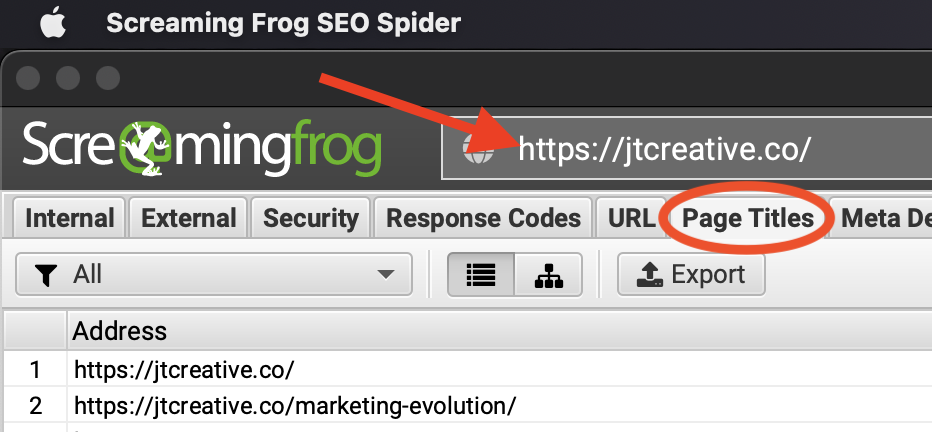
    You can optimize your existing pages by running a scan in Screaming Frog.

    1. Open Screaming Frog on your computer
    2. Type your domain in the bar at the top and click the start button
    3. When it reaches 100%, click on the “page titles” tab

    1. Look at the “Title 1” column to make sure your keywords are in the title
    2. Look at the “Title 1 Length” column to see if there are long or short titles that can be optimized.
    3. Go to your website building platform and make the necessary changes

    Grab your FREE on-page SEO guide and checklist here!

    Step 3: Meta Description

    Meta descriptions are text entries that go a little deeper than a short title will allow. It’s basically a two sentence summary of the page using the same keywords from the title and additional keywords you couldn’t fit in the title. While this is far from the most important piece of the SEO puzzle, it’s better to have meta descriptions than not. AI writing tools like ChatGPT are great for helping with these.

    Meta Descriptions should:

    • Be 75-160 characters long
    • Include all keywords from the page title plus additional keywords
    • Be unique to each page

    Step 4: Section Headings

    Section headings create a hierarchy to your content. They are helpful because they break your page text into easy to read sections. The main heading, or H1, will usually be at the top of the page in a larger font to clearly label the main theme of the page content.

    If you’re using WordPress, it’s important to know whether your theme automatically uses the page title as H1. You do not want more than one H1 per page.

    Subheadings are H2-H6 decreasing in importance. Having more than one H2-H6 is ok, but it needs to make sense. Remember back when we did keyword research and I told you write down the questions in “people also ask” section? Those are often good subheadings and can possibly win you the featured snippet at the top of Google.

    For example here’s the structure for this article:

    H1 – “SEO for Beginners: 8 Simple Steps to Optimize Your Website”

    H2 – “What is SEO?” (This was a question in the “people also ask” section.)

    H3 – “SEO TOOLS” (This phrase was found when I exported the additional keywords)
    H3 – “Step 1 – Step 8”

    Go back to that scan you ran in Screaming Frog to optimize your existing H1 and H2 tags.

    If you go back to the scan that you ran earlier, you can click on the H1 tab and H2 tab at the top of the screen.

    Just like with the titles, you can look at the “H1-1” and “H2-1” column to see all of your H1 and H2 headings. You can see their length in the “H1-1 Length” and “H2-1 Length” column to find short and long headings. Then, go to your website platform and make the changes.

    Step 5: Image Optimization

    Heavy image files will slow down your website. Search engines like pages that load fast.

    Your header or “hero” images should be less than 400kb.

    Your regular on-page images should be less than 150kb.

    You can reduce image sizes in Canva.

    1. Login to Canva.
    2. Upload your photo into a blank canvas. I use 1200×800 canvas size.
    3. Click Share > Download
    4. Check the box that says “Compress file”
    5. Click download

    If this isn’t your style, you can also use Adobe Photoshop, Lightroom, or an online compression tool like tinypng.com. If your site is on WordPress, there are plugins that can optimize your images for you.

    Step 6: Main Content

    The text in the body of your web page is your chance to use your knowledge combined with the keyword research we did earlier. Search engines will read all the text on your page to determine: the main subject matter of the page, how knowledgable you are on the subject, and how experienced you are.

    You want to talk about the topic naturally. Use your keywords and long tail keywords in your writing. Use as many words as it takes to completely explain the point you are making.

    If you’re auditing an existing page, read every word and find opportunities to make your writing more concise. Eliminate fluff and use simple words.

    Make sure your paragraphs are short and there is plenty of white space on the page to make skimming easier for your readers.

    Don’t overuse your keywords. Search engines disqualify pages that “stuff” unnecessary keywords. While there’s no hard and fast rule, a good guideline to follow is keeping your keywords to 2-3% of the total word count. But remember, natural language wins.

    Use experiences, stories, examples, and any illustrations that will help explain your point.

    Step 7: Links

    Internal links help your site visitors find additional information that is explained in more depth on another page. Anchor text is the clickable word or phrase you use to link to something else. Anchor text should be descriptive and not simply “click here”.

    For example, I have an in-depth guide on how to do keyword research which is linked above. The anchor text is “keyword research”, and when someone clicks that link it takes them to the page where they can find more information.

    External links send your site visitors somewhere other than your site. Having external links is a good thing, however you want to be careful.

    1. Don’t send someone away from your site to get information that you can give them.
    2. Don’t send people to irrelevant sites.

    Looking through this step-by-step guide, you’ll notice that I have no links to other sites to help explain any of the steps. All of the external links are sending people to download tools that are mentioned throughout this guide.

    Backlinks are links to your site from other websites. These are tougher to get, but can really boost your domain authority. In your quest for backlinks, you will undoubtedly come across someone who wants to sell you backlinks from “quality sites”. Don’t do it. Buying links is not the way to go because search engines are constantly evolving to seek and remove pages with bogus links, and even the sites that are selling them.

    The “Check My Links” Chrome extension you downloaded earlier will search your site and identify any broken links you have. Fix broken links to improve your SEO.

    Step 8: Format

    That’s right, the format of your page makes a big difference. Google is looking for a good overall user experience. When your page flows well, has helpful images, and is nice to look at, you get bonus points. This is evident by the amount of time someone spends clicking around your website. The longer they are on, the better their experience.

    Using images just to fill space won’t help. Your images should be unique, and they need to support your text.

    Using numbers and statistics where possible is good for improving your format. It’s also a great way to get another image. Any time I use a statistic, I create a simple graphic in Canva that shows that statistic in a visual way like a chart or a graph. It supports the text and provides a break from reading.

    According to HubSpot, 40% of website visitors appreciate photos and images the most.

    Again, short paragraphs and white space make your pages easier to read. This is helpful because people don’t like to read large blocks of text. Making it easier for people to digest your page information will be appreciated and boost the user experience.

    SEO doesn’t have to be extremely complicated. Following these steps will get you started on the right path, but it’s important to keep checking on your web traffic and note the patterns. See what’s working and use those strategies to drive traffic to underperforming pages.

    When you’re ready, we can help you get the most from your website! Book a 23-minute call to see how.

  • How to Launch a WordPress Website: Ultimate Roadmap

    How to Launch a WordPress Website: Ultimate Roadmap

    A van with a WordPress logo on it seems to be driving toward the ultimate goal of launching a website.

    How to start a website with WordPress

    At first glance, WordPress.com is confusing. There are themes, templates, plugins, and many other things that can muddy your experience if you don’t know what you’re doing.

    You’ve been told WordPress is the best platform for blogging, e-commerce, and small business websites, and that’s not wrong. WordPress is wonderful.

    What often gets overlooked is the learning curve required for building your website on WordPress. I’ve used WordPress for more than 10 years now and I still learn ways to improve techniques to this day. What it lacks in simplicity, it more than makes up for in power.

    If you’ve never used a CMS (Content Management System) like WordPress, Drupal, or Wix, you’re in the right place. My goal is to simplify the process of starting a WordPress site.

    A pie chart showing that 43% of all websites are on WordPress.

    43% of all websites are built on WordPress. You don’t get to own nearly half the market share of a massive industry by being mediocre.

    In this article we will look at:

    Let’s have a look.

    Pricing Plans

    Step one to launch a WordPress website is to choose a pricing plan. Some plans include a one-year domain name registration. If not, you can buy a domain name through WordPress or GoDaddy.

    How much does a WordPress website cost?

    WordPress offers 5 pricing tiers starting with the free plan and going up $45 per month for the E-commerce plan. Unlike WordPress.org, WordPress.com subscription fees include hosting. If you start small and discover you need more features later, upgrading your plan is seamless.

    FREE VERSIONPERSONALPREMIUMBUSINESSE-COMMERCE
    $0$4 / month$8 / month$25 / month$45 / month
    15 themes to choose from15 themes to choose fromOver 900 premium themes includedOver 900 premium themes includedAdditional e-commerce themes for online stores
    Ads are displayed in the footerAds are removedUpload videos50,000 plugins available to improve your site50,000 plugins available to improve your site
    WordPress BrandingWordPress BrandingLive chat supportAdvanced SEO toolsAccept payments in 60+ countries
    Unlimited posts and pagesUnlimited posts and pagesGoogle analytics integrationRemove WordPress brandingIntegrates with shipping carriers

    With the Free plan, the themes are attractive, and mobile responsive so they work great on computers and phones alike.

    The biggest downside is the random advertisements appearing at the bottom of your web pages. This is why I strongly discourage using the free plan. Especially if you want to give your best effort toward building and hopefully monetizing a great website. As soon as you upgrade to $4 per month for the Personal plan, the ads disappear. That’s only $48 per year if you pay annually. It’s worth it.

    With the Premium plan of $8 per month, you gain access to premium themes, which opens up a whole new world of design. The WordPress branding in the footer doesn’t bother me. It’s discrete and it doesn’t interfere with your site.

    The ability to install and activate plugins isn’t available until you commit to the Business Plan at $25 per month. We’ll talk about plugins a bit later so you can decide if you need them. Here you have the option to remove the WordPress branding from the footer of the site.

    Finally, if you plan to sell products on your site you’ll want to check out the E-commerce plan. It includes the ability to take payments and integrate with shipping companies.

    Choosing Your Theme

    Step 2 in launching your WordPress site is to choose a theme.

    What is a WordPress Theme?

    A WordPress theme is a website template that defines fonts, colors, and page layouts making it easy to build web pages without knowing how to code. WordPress.com has a ton of themes for you to choose from.

    If you subscribe to the Premium plan or higher, you can customize your theme for an even greater look and feel. From simple items like fonts and colors to more advanced options like custom CSS (cascading style sheets is a rule-based coding language) for stylizing buttons, graphics, and text.

    So how do you choose the right theme?

    Free vs Premium Themes

    With the free plan or personal plan, WordPress gives you 15 free themes to choose from. In reality, there are more than 15 because you’ll have access to last year’s themes as well. This makes your choice relatively simple.

    Different themes are designed for different industries. You’ll find themes for blogging, music, education, a newsletter, several product-focused themes, and a couple of portfolio themes. It’s worth mentioning that simply activating the theme does not magically make your site look like the images below.

    You’ll need a basic understanding of the building blocks within the WordPress editor.

    A screenshot of different themes within the WordPress platform you will see when you start a website.

    With the premium plan and higher, you can use themes labeled “premium” in addition to the free ones. You also have a nice button in the top right corner of the theme selection screen that says “Install New Theme”.

    Clicking “Install New Theme” shows you a few thousand WordPress.org themes. The “free” and “premium” themes I mentioned above are built by WordPress. The WordPress.org themes are typically built by a third-party company that designs WordPress themes to sell.

    With the premium plan and higher, you have access to these themes for free, however, many have a subscription fee to use all the features of the theme. Make sure you read the description.

    Are you blogging? Which blog template appeals to you visually? Look at the fonts and the colors. Look at how others have used it. Check out the “live demo” to see it in action.

    Are you a photographer? Portfolio or magazine themes will work well for you. These are visually pleasing layouts with beautiful galleries and clean lines.

    Are you selling products? The product-focused themes are best in this scenario. Depending on how much business you plan to do, you will want to look into the Business or E-Commerce pricing plan to see if incorporating payments and shipping options is needed.

    Once you’ve figured it out, click on the pink “Activate” button. Remember, you can always change your theme. It may take some work to make it look right, but you’re never married to one theme.

    Adding Your Content

    Now that you’ve chosen a design for your WordPress website, it’s time to add your content. There are a few different ways to do this. Let’s look at 2 different ways to present your content: posts and pages.

    What is the difference between posts and pages in WordPress?

    Think of posts like newspaper articles. You can categorize them, tag them, and they’re automatically displayed in your “post feed” and dedicated “blog” page.

    Pages are more like permanent sections of your website, usually found in the main menu. They’re static spaces for essential information that doesn’t need frequent updates.

    Editing Posts and Pages

    The WordPress block editor is exactly what it sounds like, and it’s the same interface for both posts and pages. These are the “building blocks” for your pages. There’s a block for paragraphs, another for images, one for displaying social media feeds, and the list goes on.

    When building your page or post, keep an eye on the “design” blocks. These blocks shape the visual page layout making it simpler to add your content. These blocks are “containers” that tell your content how to look. You can split sections of your pages into columns and determine the width of each section using the “columns” block.

    Get creative by testing the different design elements. Discover how each element effects the look of the page. There are also pre-built page templates within your theme. Simply click “page” in the top right corner, then “template,” and choose from the list of layouts ready for your input.

    Posts

    Even when building a small business website, I encourage site owners to plan blog content. When created intentionally, blog articles will build topical authority and trustworthiness for your brand.

    To create a blog post, click “posts” in the lefthand navigation within the WordPress interface, and click the pink button that says “add new post” in the top right corner. Give it a title and start writing.

    Screenshot showing how to add a post
    Screenshot showing how to add a post.

    Pro Tips for Optimizing Your Blog Posts

    1. Google ranks your posts higher for providing a good User Experience. This is improved by including unique images and a friendly, easy-to-read format.
    2. Use categories and tags to automatically organize your posts. Create categories for the topics you write about, and use keywords to tag your posts. This makes it easier to find and promote specific topics.
    3. Write clear and concise sentences. When it’s easy to read and understand, improves user experience and readability.
    4. Use spacers to build in white space and break up the text. This increases readability and boosts your ranking.
    5. Use unique, custom images to assist in explaining your post. When you mention a statistic or specific numbers, there’s always a good way to depict this with an image.

    Pages

    The pages of your website convey information about you, what you do, your products and services, social proof and testimonials, how you help people, and calls to action.

    Adding a page is just like adding a post. Click “pages” in the lefthand navigation, then click the pink button that says “add new”. You will be prompted to choose a pre-built template from your theme, or “blank canvas”, which is exactly what it sounds like.

    Pro Tips for Optimizing Your Pages

    1. Your pages should be clear and concise. How do your products and services solve problems? Use customer pain points to speak to how your specific products and services can help relieve their pains. The potential customer should have no questions about what to do if they want you to help them.
    2. Calls to action can be simple contact forms, questionnaires, free downloads, calendar links, and a whole host of other things.
    3. Titling your page is a bit different than most people think. For example, your homepage should not be titled “home”. You want to use keywords that your ideal client would type into Google to find you. Once you have a title, a design, and content, it’s time to customize.
    4. Use unique, custom images to assist in explaining your post. When you mention a statistic or specific numbers, there’s always a good way to depict this with an image.

    Customizing Your WordPress Site

    One of the best things about WordPress is the ability to customize your entire site. So, if you don’t like one of the fonts in your theme, you can change it. If you want certain colors for each part of your site, you can add them. On a more advanced level, you can add custom code to create a completely unique look.

    Creating Styles

    As long as your theme supports full site editing, you can create different styles for the blocks on your site. Your theme will tell you whether it supports full site editing in the description when you first choose it. You can click on “Appearance” in the lefthand navigation to see your theme’s description.

    To create a style for your site, roll over “appearance” in the lefthand navigation and click on “editor”. From here you can click inside of the window that displays your site.

    Then, click the black and white circle icon in the top right of the screen. This opens up a long list of blocks for customization. For example, you can make all buttons on your site use the same font and color scheme. You can make all headings a certain size, font, and color. This saves time instead of changing each element every time you add it. The customizations are never ending.

    A screenshot showing how to access the full site editor.
    A screenshot showing how to create a style.

    Adding Widgets and Plugins

    Within each WordPress website theme, there are designated areas where you can place widgets. Most themes have a widget area in the sidebar (left or right side of each page) and the footer. Some themes have a special widget area. You can customize your widget area once to make it appear the same on every page.

    What is a WordPress widget?

    A widget is a block of content that can be placed in the sidebar or footer of your WordPress website. Widgets can connect to your social media feeds, capture email addresses, or contain a simple call to action like “Subscribe”, or “Book a Meeting” buttons.

    There are shopping carts, blog post carousels, contact forms, Facebook, Instagram, YouTube, TikTok, and the list goes on. Use widgets to drive people to your social media page or download resources. Make sure you preview your page before you publish it after adding a new widget. Not all widgets work well with all themes so you may need to adjust the settings to make them look right.

    What is a WordPress Plugin?

    WordPress plugins are like apps that extend and strengthen the functionality of your site. Most are installed with one click and require little effort to set up. There are more than 50,000 plugins that range from boosting your SEO to creating a more friendly “drag-and-drop” style page editor.

    Browse the plugins library to find help with marketing, organic traffic, optimizing your images, pop-ups, or building subscriber lists.

    TIP: Be careful which and how many plugins you install. Many plugins slow down your site loading speed. Always check and delete unused and unnecessary plugins. You can do that by rolling over “Plugins” in the lefthand navigation and clicking on “installed plugins”. Find the one you want to delete and click “deactivate”. Once it has been deactivated you can click “delete”.

    3 Helpful WordPress Plugins
    • RankMath SEO – This helps you to optimize your pages and posts for better search engine rankings.
    • Autoptimize – Optimize images and eliminate unused code on the backend of your site to speed up performance.
    • AMP – Stands for accelerated mobile pages. It lightens the load on mobile devices to increase performance.

    Search Engine Optimization

    Search engine optimization can increase visibility and traffic for your website by making it clear to search engines what your website is about. SEO is constantly changing and evolving, however there are some foundational principles that you can use to help your pages rank higher on Google.

    I have created a FREE downloadable On-Page SEO Guide and Checklist for you to use.

    You can also read more about search engine optimization in a previous article.

    Final Thoughts

    Launching website on WordPress doesn’t have to be difficult. Take time to explore what everything does. Trial and error is the best way to become an expert. Think of it as a journey instead of a destination. Your website will never be finished and that’s ok. Just start building!

    Questions about your website or WordPress? Set up a call. Or send me an email to justin@jtcreative.co.

  • What’s wrong with your website? 5 free tools to help you find your SEO pitfalls.

    What’s wrong with your website? 5 free tools to help you find your SEO pitfalls.

    Find your SEO pitfalls using these 5 free tools

    Right now there are almost 2 billion active websites on the internet. That’s some stiff competition! How could you ever win the coveted spot on the first page of Google with that kind of saturation?

    In the most basic sense, using a combination of technical SEO, and content strategy, you can compete with almost anyone. If you want to improve your website’s SEO and your search engine ranking, you need to know where you’re falling short. Fortunately, there are a number of free tools available that can help you identify your SEO pitfalls.

    In this article we will look at 5 tools to do just that, but first, there are a couple of things you need to know.

    1stImproving your SEO is NOT a magic formula to make you more money tomorrow. It involves

    • Time creating
    • Time building
    • Time waiting

    but it pays off in the long run. A strong SEO strategy is absolutely necessary for your brand to fully harness the power of the internet, but before you waste a ton of time, ask yourself this: are you sure it’s SEO you’re talking about? What do you expect it to do for you? It could be that your website performs fine and what you really need is a total marketing strategy, of which SEO is just one piece.

    2ndUsing these tools will either make you aware of problems that you can fix, or make you more confused than you already are. These tools are used by people who nerd out on this stuff. It’s OK that you don’t know everything. Often, you need to leverage other professionals to help you.

    3rd These tools do a lot of the same things. There are many overlapping features in these products, so most of it boils down to your preference. The interfaces are drastically different, so look out for the ones that are easiest to read. You don’t need to use all of these tools to audit your website all the time. Find one or two that make the most sense to you and blast off.

    Let’s look at the 5 free tools for assessing your website in no particular order.

    1. Screaming Frog SEO Spider

    It’s not a creepy as it sounds. Screaming Frog is piece of software that scours your website and compiles a ton of data into a relatively easy-to-read format. The report points out pieces of your website that might require optimization.

    Discover your H1 and H2 tags, how many you have, how long they are, and if they’re used correctly. Screaming Frog detects images that are slowing down your loading times, non-optimized page titles, and meta information that needs tweaking. Plus, any potential security issues will be brought to light.

    This is a great place to start so you know what needs immediate technical attention on the backend of your website.

    TIP: Sort the overview tab according to the “issue type” column to view and work on the most important things first.

    2. Google Search Console

    The Google Search Console is a completely free tool from our friends at Google. Insights about your traffic, pages that are indexed (showing up in Google search results), and pages that are not indexed and why are summarized in one location.

    All you need is a Google account and access to your domain’s DNS settings in order to verify site ownership. Once you’re set up, it takes a month or so to really build analytics on traffic and other key insights. There’s plenty to do while you wait, though.

    First, upload your sitemap. This will help Google know where your pages are. You may find pages that have been crawled but not indexed. Once you fix the issues, click “request indexing”, and that page will be crawled again. You will also see mobile usability reports, page performance reports, and any unused code that is slowing down your website inside the “page speed insights” section. Fix these items to boost your speed.

    TIP: You may receive emails from Google about an indexing issue due to a redirect error. Check which version of your web address is mentioned in the email. If it says “http” (without the ‘s’), you have nothing to worry about. This is simply redirecting an un-secured version of your site to the secure version. If the email says “https”, you will need to find where the redirect is causing problems. You can do this in Screaming Frog.

    3. SEM Rush

    SEM Rush is one of the most in-depth tools for strengthening your website’s performance. It’s also the most expensive one I use. There are features within SEM Rush that are free and don’t require a subscription.

    For example, the on-page SEO checker combs through specific pages and offers suggestions for improvement. The Keyword Magic Tool tests your site against keywords that you enter, and compares how you stand up against a competitor’s keyword ranking.

    One of the best free features is the Content Audit tool. Plug in keywords, select a geographic region, and SEM Rush shows you top-ranking sites along with a list of questions people Googled to find these sites.

    The paid version adds local SEO, social media, content re-writing, and whole slew of incredible tools and insights for constant monitoring to improve your SERP (search engine results page) rankings.

    TIP: In the content marketing tab, click on “Content Research”. This is an easy way to research topics you already have in mind, and find new content ideas in line with your specified keywords. If you’re blogging on your website, this is especially advantageous.

    4. Similarweb

    The Similarweb Chrome extension gives you a free look into the demographics of your site visitors. Metrics include which age groups are likely to visit your site, what sites they like to visit, and their social media interests.

    See how your site ranks in different geographic regions, and compare your site to similar sites.

    As a browser extension, it doesn’t require much work to use it. Pin it to your extension bookmarks and click the logo after your site has loaded. There is a paid version of this, however using the extension by itself is suitable.

    TIP: After clicking the extension button to scan your website, an orange button appears at the top with “More Insights”. Typically this means, “clicking here will redirect you to our pricing plans”, but that’s not the case with Similarweb. There are loads of additional free insights when you click the orange button.

    5. Moz

    Moz.com has many of the features other tools have. Moz, however, includes a score for your domain authority and page authority.

    These terms have become a massive deal in recent years as Google is constantly updating its algorithms. Domain authority is how they describe your knowledge of the subjects that you write about on your site.

    To put it generically, “if you know what you’re talking about, and you talk about it a lot, your domain authority will increase.” There’s a ton of technical factors like link building and update frequency, which all play in to domain authority. Moz presents it in an easy-to-digest number format (your score).

    The free version provides 3 reports per day.

    TIP: If your website is less than 3 months old, there probably will not be any data on here. This is a great tool to see if what you’ve been doing is actually working once you’ve been doing it for a while.

    To wrap up, these 5 tools can help you identify your website’s shortfalls. Since there’s no magic formula for building SEO, be patient and consistent in your strategy. If you find yourself overwhelmed after auditing your website, schedule a call with me and I’m happy to take a look.